
ET Tour Leader App – Help & Support
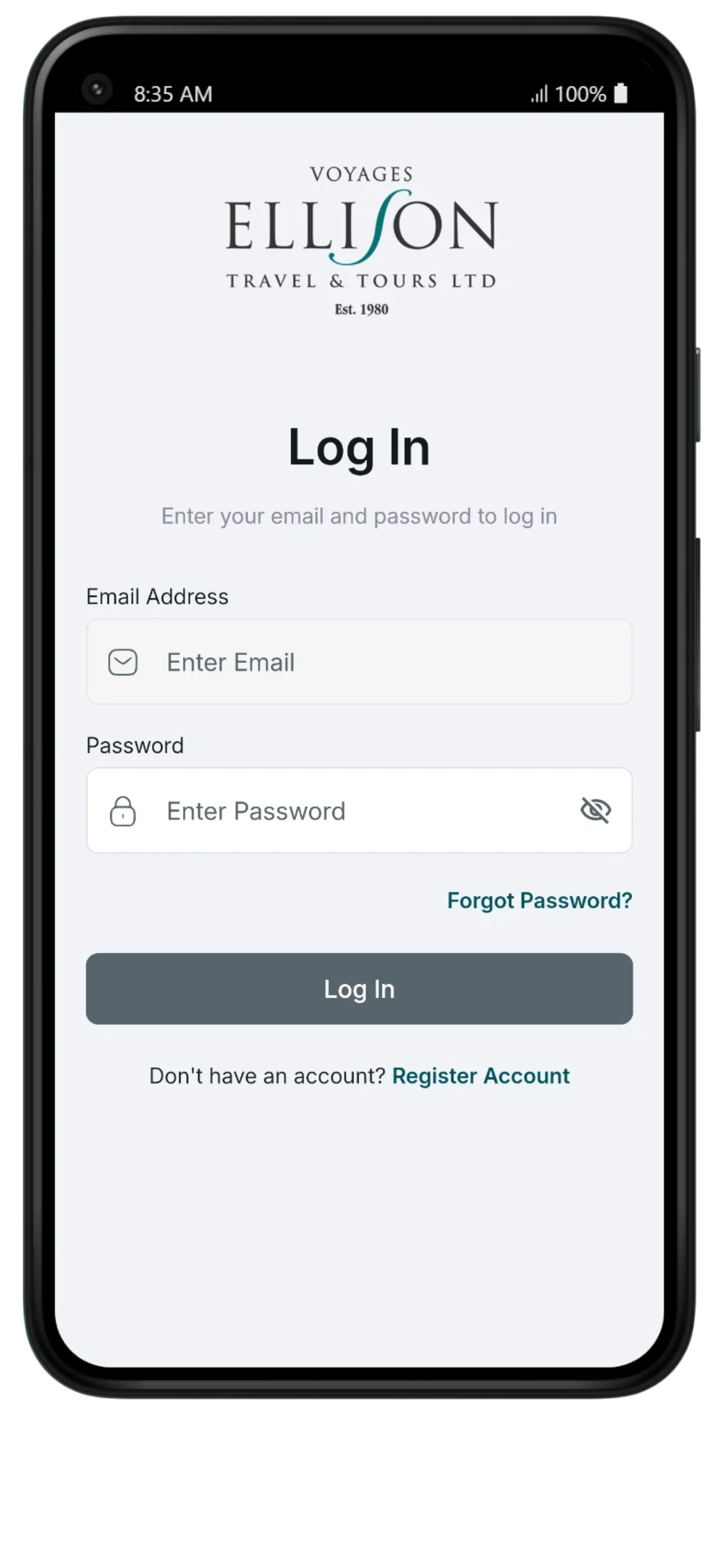



The ET Tour Leader App is Ellison Travel & Tours’ private mobile app for tour leaders. It provides access to tour itineraries, documents, contacts, and emergency information while travelling.
Welcome to the ET Tour Leader App Help Centre. This page provides clear, easy-to-follow guidance for tour leaders using the app on their phone or tablet. No technical knowledge is required. Click below to watch a 3 minute overview/instructional video.
The ET Tour Leader App gives you secure access to your tour itineraries and important documents, all in one place. It is designed to support you while travelling and can be used offline once information has been loaded.
With the app, you can:
- View your complete tour itinerary day by day
- Access key travel documents like tickets, confirmations, insurance info and safety information
- Read important notes and instructions
- Share access with approved users (e.g. administrators, chaperones)
- Reduce paper and help the environment.
Only tours you are authorized to access will appear in the app.
Option 1:
On your mobile device, download for free from the App Store, Google Play or Amazon.
Search for: ET Tour Leader
Option 2:
Access the web version here at: https://tl.ellisontravel.com
IMPORTANT: First-time users must register (via the web version online OR the app) before accessing tours.
Creating an Account
If you do not yet have an account:
- Tap Register Account on the login screen
- Complete the registration form
- Follow the email instructions to activate your account
If you are unable to register, contact us below.
After registering, please provide your registered email address to your Ellison Travel & Tours planner so access to your tour can be enabled.
- Open the ET Tour Leader App
- Enter your email address you registered with Ellison
- Enter the password you created during registration. If you forget your password, tap Forgot Password and follow the instructions sent to your email.
After logging in, you will see a list of active tours assigned to you.
Each tour card shows:
- Tour name
- Tour date range
Tap a tour to open it. If you do not see a tour you are expecting, it may not yet be active or assigned to you.
The itinerary section shows the full structure of your tour, organized by day.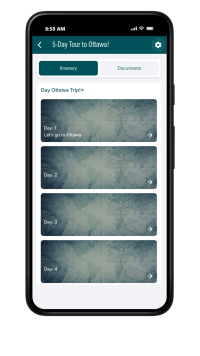
You will see:
- The itinerary title
- A list of days (Day 1, Day 2, Day 3, etc.)
Tap a day to view its details.
Each day might include:
- The date and time
- A short description of the day
- A list of bookings or activities
Bookings may include:
- Activity name
- Start time
- Supplier name (if applicable)
- Special notes or instructions
Tap on a booking to view Collaborator Notes, which may include important instructions or reminders.
Meals are shown using abbreviations: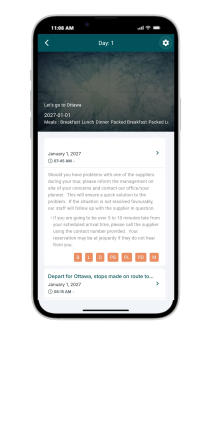
- B – Breakfast
- L – Lunch
- D – Dinner
- PB – Packed Breakfast
- PL – Packed Lunch
- PD – Packed Dinner
- M – Meal included
These indicators help you quickly understand what meals are provided each day.
The Documents section contains important files related to your tour.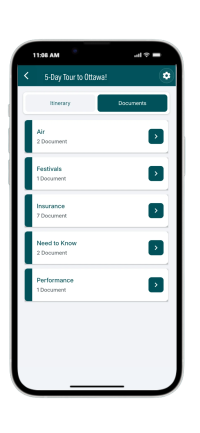
Documents are grouped into categories such as:
- Air
- Insurance
- Festivals
- Need to Know
- Performance
Tap a category to view its documents. Documents are listed in alphabetical order. Tap a document title to open it within the app.
The ET Tour Leader App is designed to work offline once content has been loaded.
Offline Tips
- Open your tour while connected to Wi-Fi before travelling
- Scroll through itinerary days so information is saved
- Recommend checking by opening the most important documents at least once before going offline
- Offline documents will show a green check mark
Once saved, itineraries and documents can be accessed without an internet connection.
Mobile device users (iPhone & Android): If Wi-Fi isn’t available, you can choose to allow the app to use cellular data in your device settings. This is optional and may incur data or roaming charges while travelling.
I can’t see my tour
- Swipe down on the screen to refresh the app
- The tour may not yet be active
- You may not be assigned to the tour – ensure you have provided your tour planner with the correct email you registered with
- Try logging out and logging back in
- In some cases, deleting and re-installing the app is necessary
If the issue continues, visit Getting Help section below.
My documents aren’t loading
- Swipe down on the screen to refresh the app
- In some cases, deleting and re-installing the app is necessary
If the issue continues, visit Getting Help section below.
Documents won’t open
- Make sure the document was opened at least once while online
- Restart the app and try again
- In some cases, deleting and re-installing the app is necessary
If the issue continues, visit Getting Help section below
I forgot my password
Use the Forgot Password option on the login screen and follow the email instructions.
Can I access multiple tours through the app?
Yes, use one account for access to all of your current ET tours
Having trouble downloading the app?
- Your phone’s network may have interrupted the request OR some locations/institutions (ie. schools) may have a firewall that is blocking your request.
- Turn Wi-Fi off → and try to download the app again using cellular data
- Try to download the app again when you are connected to a different wi-fi network without a firewall
I can’t download or print documents from the app
- Some locations/institutions (ie. schools) may have a firewall that is blocking your request
- Try going to the desktop version of the app to print your documents https://tl.ellisontravel.com
If the issue continues, visit Getting Help section below
If you experience trouble with the ET Tour Leader app:
Kindly complete this form to notify our support team. We will be in touch with you as soon as possible.
If you are on-tour and having trouble after office hours, please contact your Group Planner directly.